
Tips for each Category
Using the Everything Page
It all starts with the “Everything” Page of your Tracker. This is the right-hand side of your page spread when you have your tracker open flat. The primary purpose of this page is to have a tangible, reliable place to capture all the tasks, to-dos, errands, reminders, and ideas so that your brain doesn’t need to use precious energy working to remember (or at least not forget.) Functionally, we get this by doing a BRAIN DUMP!
Frequent questions I hear are:
Q: What goes on the Everything page?
A: Anything and everything that is currently on your plate or generally something you don’t want to forget. There are no rules because the next steps of organizing is when you start making decisions about priorization and actionability.Q: How often do I update it?
A: Add things anytime they come to mind. Start a new page when your current one gets too messy to manage.Q: Is this my to do list?
A: No. Think of it more like a repository or database of things that could go on your to do list if you choose to put it there.
Remember, this is just the first step. The Joyful Productivty Tracker system includes a process to revisit and assess what you need to do and how your should prioritize what you choose to do.
Click here or the image to the right for additional guidance and tips on doing a Brain Dump to populate your Everything page.
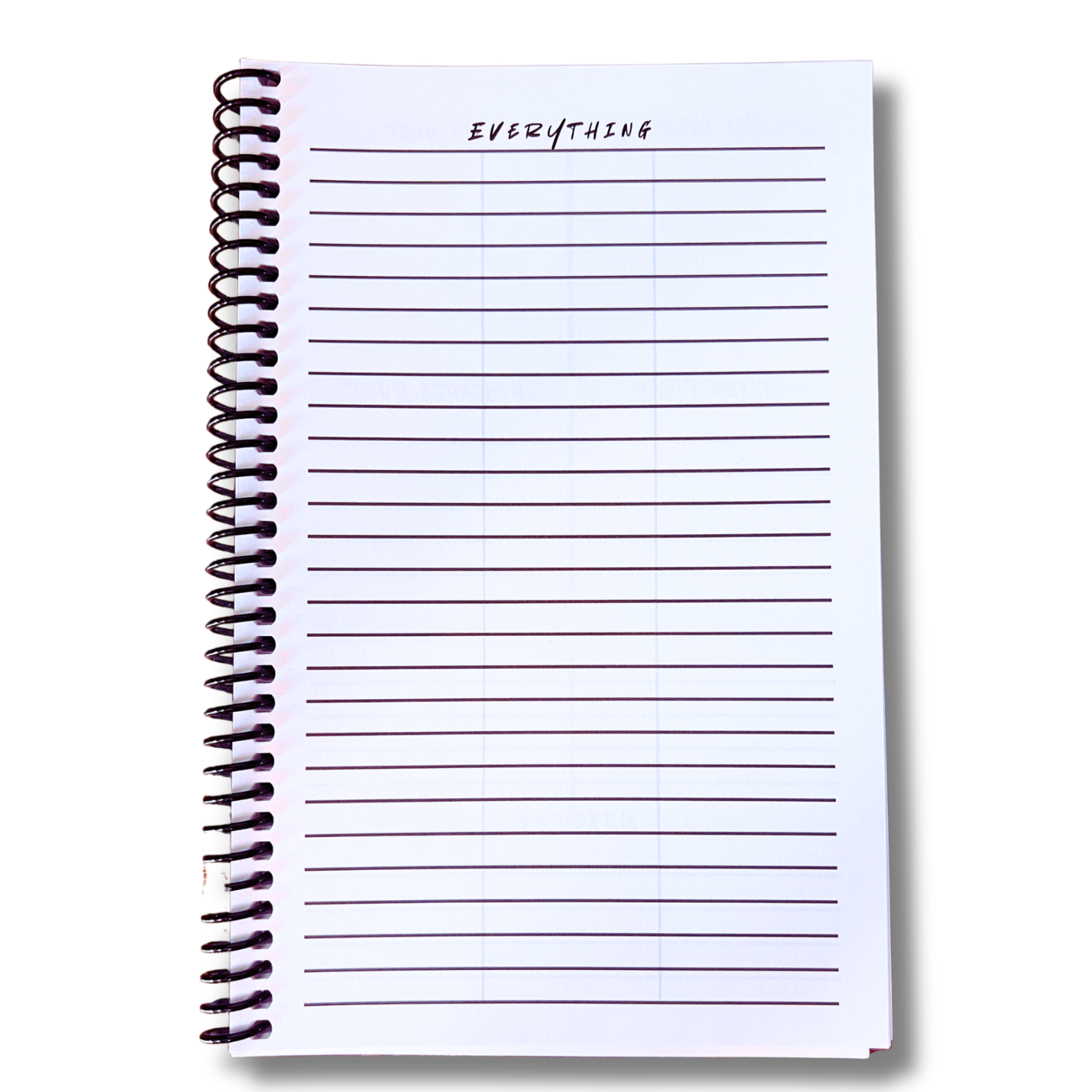
The Joyful Productivity “Everything” page is on the right side of the open page spread. Click the image above for more tips specific to populating and updating this page.
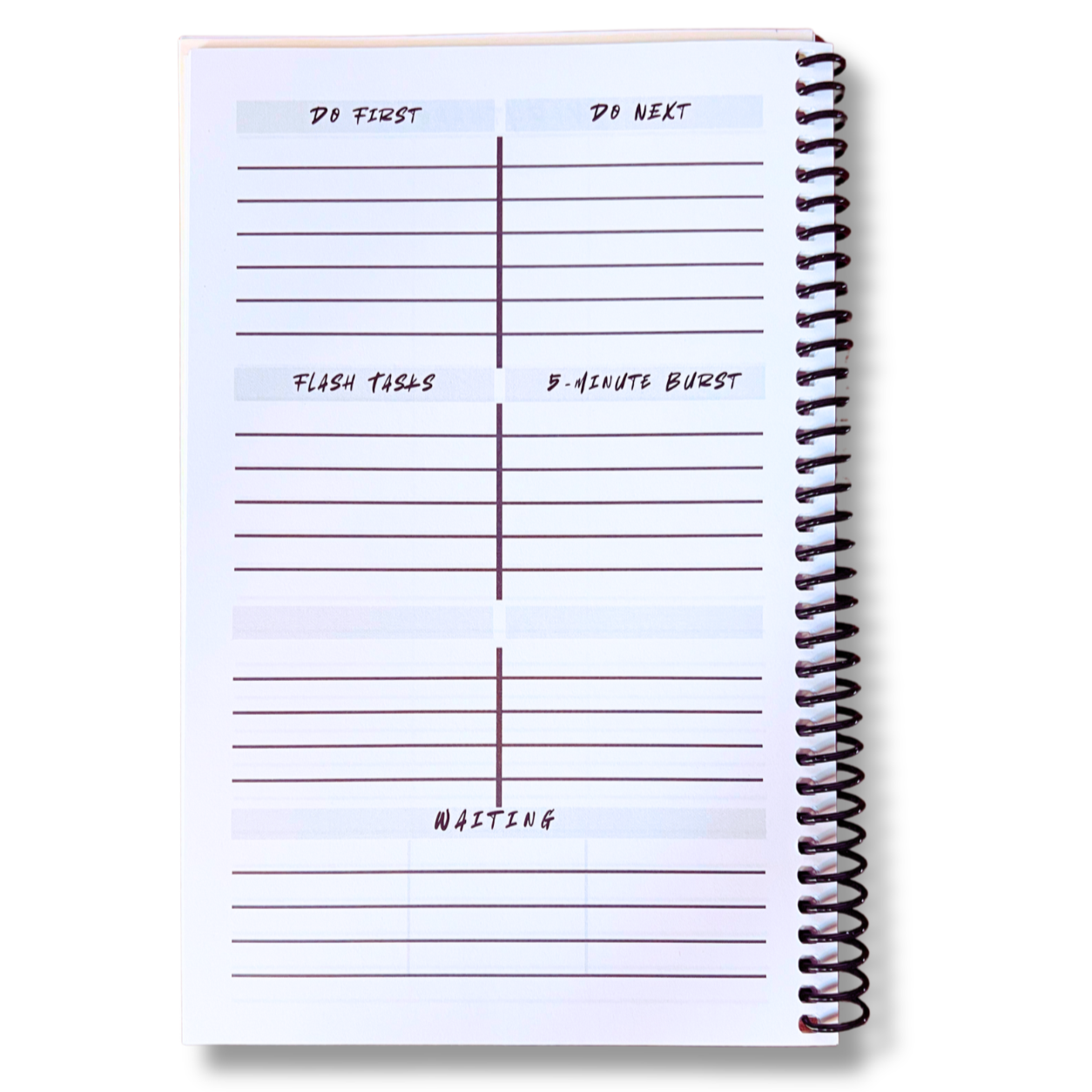
The left side of the Joyful Productivity Tracker is used to categorize the tasks and items you’ve chosed to prioritize from your Everything list.
Using the Categories Page
Before going into the specifics of how I like to use each of the different categories, I’d like to answer a few questions about the importance and general use of this step in your tracking process:
Q: Should all the items from my Everything page find a place in one of the sections on the Categories page?
A: Most likely not! I never say never, but you want to keep the Categories page limited to your higher priorities overall and within each section. If you put all the tasks from your Everythin page into different sections, you’ll only be slightly less distracted because it becomes a marginally better organized list of everything in your head. If it all fits, are you really getting everything out?
Q: How many items should I put in each section?
A: That’s totally up to you and your focus needs. Some people like to use this page with an intention of the time window, whether it is for one day, the morning, a week, whatever. Other people need an extra tight boundary around their attention and only put one thing in their “Do First” section so they aren’t distracted from it. The filler sections of “Flash Tasks” and “5-Minute Burst” will likely benefit from more items so that when you have the time window and inclination you have more choices.
Q: How often should I refresh my Categories page?
A: At any point when it becomes too messy to keep you focused. This might be daily, after a couple of days, or even hourly if you are making great progress! Heck, you might even decide to start fresh because something happened and your priorities have changed. It doesn’t matter as long as you’re intentional.
Q: Can I add items to a section before I complete all the items I put in it initially?
A: Generally I don’t, but whatever works for you is okay. I recommend that if you are compelled to add something new, ask yourself, “Have my priorities changed?” or “Am I avoiding the tasks that remain?” Even the act of adding new things that you will theoretically do next is a form of procrastination.
Q: Is there a specific order I should work on the different sections?
A: Nope. Generally, start by looking at your “Do First” section, but you’ll notice over time that you start recognizing when to look at the different sections.
Q: Can items be in two sections at the same time?
A: Sure! It’s totally up to you. There are no rules for this (or anything really, you can use any part of this Tracker in anyway that helps you stay focused. I actually go back and forth on this. Sometimes I will have somethign in my Do First or Do Next sections AND my Flash Task section because it is important and urgent AND super quick. (I often start my day with these to get a quick dopamine hit from getting something done!) Of course, if it feels redundant or inefficient to put it in two places, then don’t!
DO FIRST
This is intentionally the most prominent section of the categorizing page. If you keep your Tracker folded and open to show only the Categories page, your eye falls here first most naturally. Different people adopt various strategies to use this space most effectively to stay motivated and focused.
Questions you might consider as you think about what to put here include:
If I could only do three things today, what would they be?
How do the items I’m considering connect to my larger goals?
What one thing, if completed would give me the most mental relief?
DO NEXT
These are your second-tier priorities. We list these up front so that as you complete items from your “Do First” section, you don’t need to return to your full “Everything list” to figure out out “now what?” Many people find that overwhelming or distracting.
Other ways to think about this section would be as
“If I Have Time Today”
or
“Important But Not Urgent”
FLASH TASKS
My favorites, really. This category is meant for little tasks that take no preparation and practically no time. Unfortunately, they tend to pile up because we don’t plan time to do them. Or we don’t think of them when we actually have the time to get them done. As a result, they end up taking a bigger toll on our mental load than they truly deserve considering how small they are.
By listing them here, you always have a ready-to-go list of things you can get done when you havea spare 5-10 minutes.
A general rule of thumb that I use is it should take no more than 3 minutes to complete, start-to-finish. Ideas about when and how to use Flash Tasks to boost your sense of productivity and accomplishment are:
Sending a text
Making an appointment online
Looking something up
Confirming something on a calendar
Finding an email
Wrapping a present
Ordering something
Reading an email or letter
Putting dates on the calendar
5 - MINUTE BURST
Depending on which version of the JPT you own, this section might be called “5-Minute Burst” or “Chip-Aways”. The intent for this section is the same regardless. It was designed for tasks that have been hanging over your head and you might be avoiding because to do them from start to finish would take a BIG block of time, but realistically, you could gradually get it done a little bit at a time. Items in this section should not require flow, or benefit from momentum. 5- minutes here and there every day or so for a week will get you the same results as spending an hour or two all at once. Examples of things that might lend themselves to this sort of task include:
Folding laundry
Filing papers
Opening mail
Sorting anything
Online research
Hey, if you ever find that you have a big chunk of time that you can get on a roll and knock out a whole item - great! Otherwise, use some of your found time between appointments or when you need a mental buffer between activities to make progress on the more administrative tasks that you never seem to have time to fully complete.
Custom Categories (2 Columns)
These two customizable categories can be used in a number of ways. Some different ways I’ve used these sections include:
Back-to-school lists
Trip planning
Holiday-related to-dos
Moving lists
Project lists and reminders
Outreach lists
WAITING
Feedback I’ve gotten is that this section is often the most transformative segments of the entire Tracker (second only to the brain dump value of the EVERYTHING page!) By putting things here you can really release them from the mental load you are carrying. There are two primary flavors of “Wating” Items:
Things that are not yours to DO anything with but you want to make sure someone else doesn’t forget them.
Things that you WILL need to do something when you get them, but you can’t do anything until a certain date or when you receive something from someone else.
In both cases, you might find it useful to add a date when you want to check on them if that loop hasn’t been closed yet.
Working the Process
Throughout Your Day
I recommend keeping your Tracker folded open so when it is sitting on your desk or a table, you only see the segmented Categories page (left side of the page spread).
Your eye will naturally fall on to the upper left corner where the ‘Do First’ caegory items are list.
You won’t be distracted by the big, messy list on your ‘Everything’ page.
Cross things off on your Categories page as you work through them. Don’t worry about fully crossing them off on the Everything page until you go to find additional items to categorize or to start a fresh page.
Again, it prevents you from getting distracted. (It’s all about reducing distractions!)
You get an extra jolt of dopamine when you cross it off again later :-)
When you tuck your Tracker into a purse or bag, or when you decide you want to close your Tracker, use a binder clip to mark where you are in your page.
Of course, if you are someone who prefers to tear out the pages as you complete or update them, the binder clip isn’t necessary, but I like to keep the old pages in case I haven’t fully reviewed them yet and I also like to look back an appreciate all I’ve accomplished.
When You Are Ready for a Refresh
Much like everything else related to the Tracker, there is not hard and fast rule for how you MUST do this step. I do have some tips based on what has worked for me or how I’ve seen others successfully use the Tracker.
Start your new “Everything” page by transferring the unfinished items from your current “Categories” page.
Notice items that have been transferred several times (or even just once!) and pause to think about why or how it hasn’t gotten done yet.
Do you need to make it smaller? What would be the VERY first thing you need to do to get started. Nothing is too small! (“Open contacts app on phone to find Sarah’s address” is NOT too small!)
Are you avoiding it? Figure out why?
Is it no longer important? Maybe it never was actually important to you, but you felt like you SHOULD do it.
Then start to transfer items that remain on your Everything list. This is your opportunity to gleefully cross off things you completed that were checked off from their categorized list. It is also a chance for you to rethink the phrasing or ultimate importance of items that need to be transferred (see sub bullet above)
Throughout this whole transferring process, if something new pops into your head, write it down as it comes to you! There is no proper order remember! I suggest starting with the remaining categorized items so they end up closer to the top of your new Everything page, but it doesn’t matter.
Once you are sure that you’ve transferred everything that remains and still matters, put a big X (or something similar) over the page. That way, if you do page through your Tracker, you can quickly see, “yes, I’ve confirmed that I moved the important things forward.”
This also means that if you have to do a quick triage and clean up of your lists, you don’t need to dedicate time to confirming that every little thing was transferred before moving on to what’s most important right now. You’ll have shorthand reminder of whether or not you need to double check you’ve not dropped the ball on anything critical.
Joyful Productivity Tracker FAQs and Tips
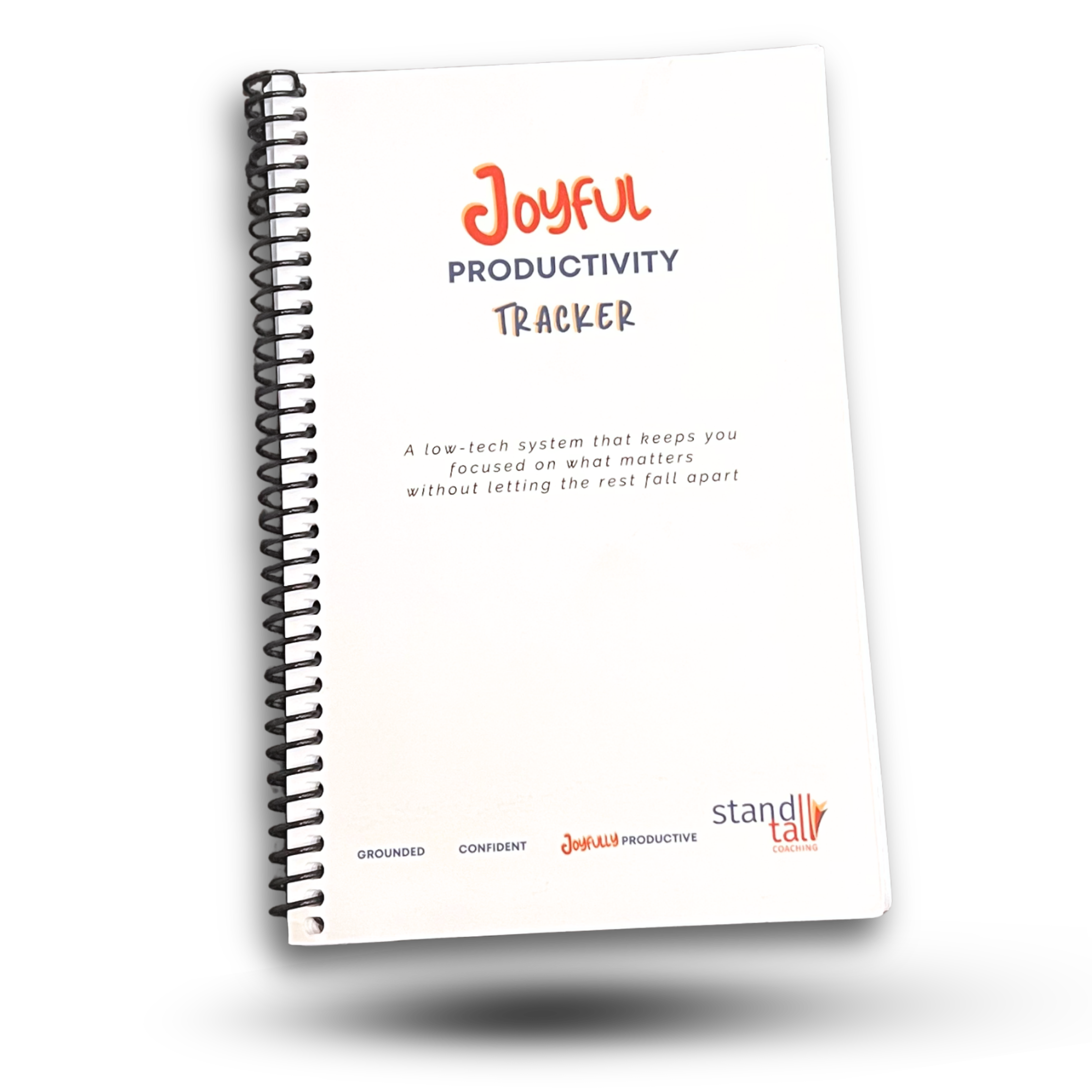
Welcome to your
Joyful Productivity Tracker!
I’m so excited you’re here to learn more about how you can use your Joyful Productivity Tracker (JPT) to stay focused on the things that matter in your life without letting the rest fall apart!
Your JPT should have come with a Quick Start Guide on the inside front cover. You can also download a longer version of that guide here.
Below, you’ll find additional tips and guidance on how I like to use the Tracker and some practical ideas about variations on how you can customize the sections and process to fit your needs. Of course, there is not right way or truly wrong way to use the Tracker. If you use it toally differently than I suggest and it works for you GREAT! I couldn’t be happier for you.
Scroll down to find section of the Tips page you are interested in
Using the Everything Page (Step 1: Do A Brain Dump)
Using the Categories (Step 2: Organize Your Items)
Tips for Each of the Categories
Working the Process (Step 3: Work Your List!)
If you have questions for me or ideas you’d like to share, please send me a message here.